From Screenshot to Editable Text: Best Practices for Clean Image-to-Text Conversion
Extract text from any JPEG with a free online converter. Learn how OCR works, why accuracy varies, and how to handle handwriting and scans.
You've got a screenshot of a paragraph you need to quote, a photo of a whiteboard from a meeting, or a scanned page from an old document — and none of it is text you can actually select, copy, or search. It's just pixels arranged to look like words. Retyping it manually works, but it's slow, and it's exactly the kind of task a JPEG to text converter free tool is built to eliminate.
The technology behind this, OCR (Optical Character Recognition), has gotten remarkably good over the last several years, but it's not magic — it works by pattern-matching pixel shapes to known characters, and how well that works depends heavily on what you feed it. A crisp, high-contrast screenshot converts almost perfectly. A blurry photo of handwritten notes taken at an angle in bad lighting is a much harder problem.
In this guide, you'll learn how to extract text from a JPEG image for free, why OCR accuracy varies so much between documents, how to handle scanned handwriting specifically, and how to run OCR programmatically if you're processing images at scale.
How OCR Actually Turns an Image Into Text
Here's the core technical conflict: a JPEG is just a grid of colored pixels. It has no concept of "letters" or "words" — to the file format, a photo of the word "hello" and a photo of a cat are exactly the same kind of data, just different pixel patterns. There's no embedded text layer to extract, unlike a native PDF or a Word document.
OCR software bridges that gap by analyzing the shapes within the image, identifying regions that resemble text characters, and matching those shapes against a trained model of what letters and numbers typically look like. The output is genuine, selectable, searchable text — reconstructed from visual pattern recognition rather than pulled from any hidden data in the file.
This is also exactly why OCR accuracy isn't fixed — it depends entirely on how clearly the actual text characters are represented in the image to begin with. Good input produces excellent results. Poor input produces a document full of misread characters, no matter how advanced the underlying OCR engine is.
How to Extract Text From a JPEG Image for Free
The general process for extracting text from a photo or screenshot looks like this:
- Upload your JPEG to an online OCR tool.
- Let the engine process the image. Most tools handle this in a few seconds for a single image, longer for multi-page batches.
- Review the extracted text. OCR is rarely 100% perfect on the first pass, especially with less-than-ideal source images, so a quick proofread catches misread characters before you use the text elsewhere.
- Copy or download the result, either as plain text or, for longer documents, as an editable file format.
For a clean screenshot or a well-lit photo of printed text, this entire process typically produces highly accurate results with minimal manual correction needed.
How to Convert Photo Text Into an Editable Word Document
Sometimes plain text isn't quite what you need — you want the extracted content in a proper, formatted document you can immediately edit, rather than a flat block of text with no structure. To convert photo text to editable word doc:
- Use a converter that outputs directly to a document format, rather than just plain text, if you want to preserve basic structure like paragraph breaks and headings.
- Check paragraph and line-break handling. Some OCR tools convert every line of the original image into a separate line break in the output, which can leave a document looking oddly fragmented rather than flowing as natural paragraphs.
- Clean up formatting after extraction. Even a good OCR conversion typically benefits from a quick formatting pass — reapplying headings, fixing any awkward line breaks, and confirming the reading order is correct, especially for multi-column source images.
Convert Scanned Handwritten JPEG to Text
Handwriting is a genuinely harder problem for OCR than printed text, and it's worth understanding why before you expect print-quality accuracy from a handwritten scan.
Printed text follows highly consistent, standardized letterforms — every printed "a" in a given font looks essentially identical. Handwriting varies enormously between individuals, and even within a single person's writing, letter shapes shift based on speed, pressure, and context. This makes pattern-matching dramatically harder, which is why handwriting recognition (sometimes called ICR, or Intelligent Character Recognition, as distinct from standard OCR) generally produces lower accuracy than printed-text OCR, even with modern tools.
A few things that improve results when converting handwritten JPEGs to text:
- Clear, consistent handwriting converts better than rushed or highly stylized writing. Print-style handwriting (separate, distinct letters) generally converts more accurately than cursive, where letters connect and blend into each other.
- High contrast matters even more for handwriting. Faint pencil marks or low-contrast ink can be difficult for any OCR engine to distinguish from background noise or paper texture.
- Expect to proofread more carefully. Even strong handwriting-recognition tools typically require more manual correction than printed-text OCR, so budget time for a careful review rather than assuming a first-pass conversion is ready to use as-is.
Why OCR Accuracy Varies: Common Troubleshooting Fixes
If your JPEG to text conversion is coming out full of errors, a few specific issues are usually responsible:
- Low resolution. If the text in your image is small or the overall resolution is low, individual characters may not have enough pixel detail for the OCR engine to distinguish reliably. Re-photographing or rescanning at a higher resolution, if possible, often fixes this immediately.
- Poor lighting or shadows. Uneven lighting across a photographed document can create false edges and contrast shifts that confuse character detection. Even, diffuse lighting produces far more reliable results than a photo taken under a single harsh light source.
- Skewed or rotated images. Text that isn't roughly horizontal can significantly reduce accuracy, since most OCR engines expect a reasonably consistent line orientation. Straightening the image before running OCR — either manually or using a tool with automatic deskewing — often improves results noticeably.
- Background noise or clutter. A photo of text on a patterned surface, or with visible background objects overlapping the text, gives the OCR engine more visual noise to sort through, increasing the chance of misreads.
Python OCR: Extract Text From JPEG With Pytesseract
For developers processing images programmatically, the pytesseract library — a Python wrapper for Tesseract, an open-source OCR engine originally developed by Hewlett-Packard and now primarily maintained by Google — handles this in just a few lines:
import pytesseract
from PIL import Image

image = Image.open("scanned_page.jpg")
extracted_text = pytesseract.image_to_string(image)

print(extracted_text)
This requires Tesseract itself to be installed on your system separately, since pytesseract is a wrapper around the underlying engine rather than a standalone OCR implementation. For batch processing, wrapping this in a loop over a folder of images extends the same basic approach to an entire directory of files.
For noisy or lower-quality images, pre-processing the image before running OCR — converting to grayscale, increasing contrast, or applying basic noise reduction — commonly improves extraction accuracy, and can be done using an image library like Pillow before passing the image to pytesseract.
Frequently Asked Questions
How do I extract text from a JPEG image for free? Upload the image to a free online OCR tool, let it process the file, and review the extracted text for accuracy. Most tools handle a single, clear image in just a few seconds, with results typically available as plain text or a downloadable document.
Can OCR read handwritten text accurately? It depends heavily on the handwriting style. Clear, print-style handwriting converts reasonably well, while cursive or inconsistent handwriting is significantly harder for OCR to interpret accurately, generally requiring more manual correction than printed text.
Why is my extracted text full of errors? This is usually caused by low image resolution, poor lighting, a skewed or rotated photo, or background clutter around the text. Improving any of these factors before running OCR — better lighting, a straighter angle, higher resolution — typically improves accuracy substantially.
Is there a free Python library for extracting text from images? Yes, pytesseract is a widely used, free Python wrapper for the open-source Tesseract OCR engine, commonly used for both single-image extraction and batch processing across a folder of images.
Can I convert a photo of text directly into an editable Word document? Yes, many OCR tools support exporting directly to editable document formats rather than plain text, preserving basic structure like paragraph breaks. A quick formatting pass afterward is still worth doing, especially for documents with multiple columns or complex layouts.
Turn Any Photo or Screenshot Into Usable Text
Whether it's a screenshot, a photographed whiteboard, or a scanned page from an old notebook, getting usable text out of an image comes down to a mix of good source material and the right tool — and now you know exactly what separates a clean conversion from a garbled one.
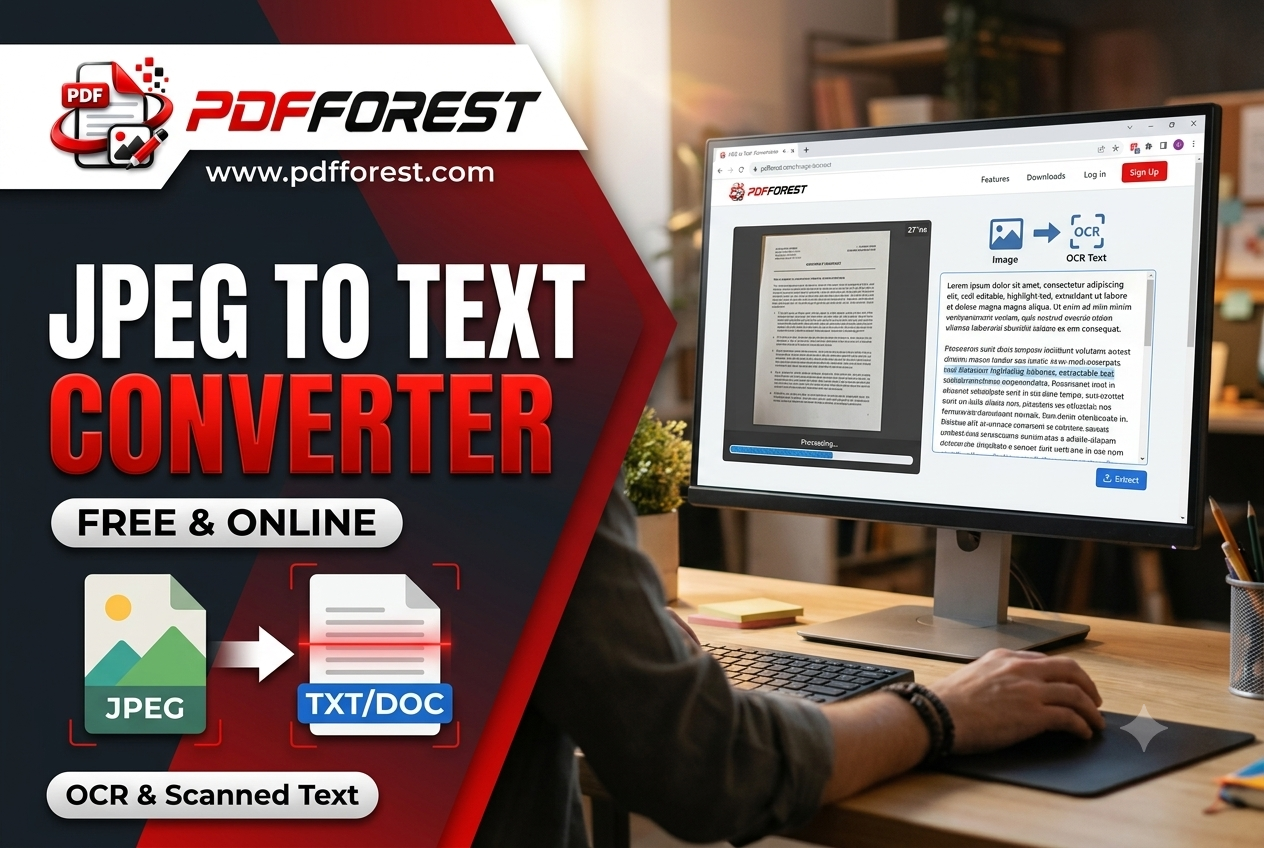
Ready to extract text from your images? Try PDF Forest's JPEG to Text converter — fast, free, and built to handle everything from clean screenshots to scanned documents, no signup required.