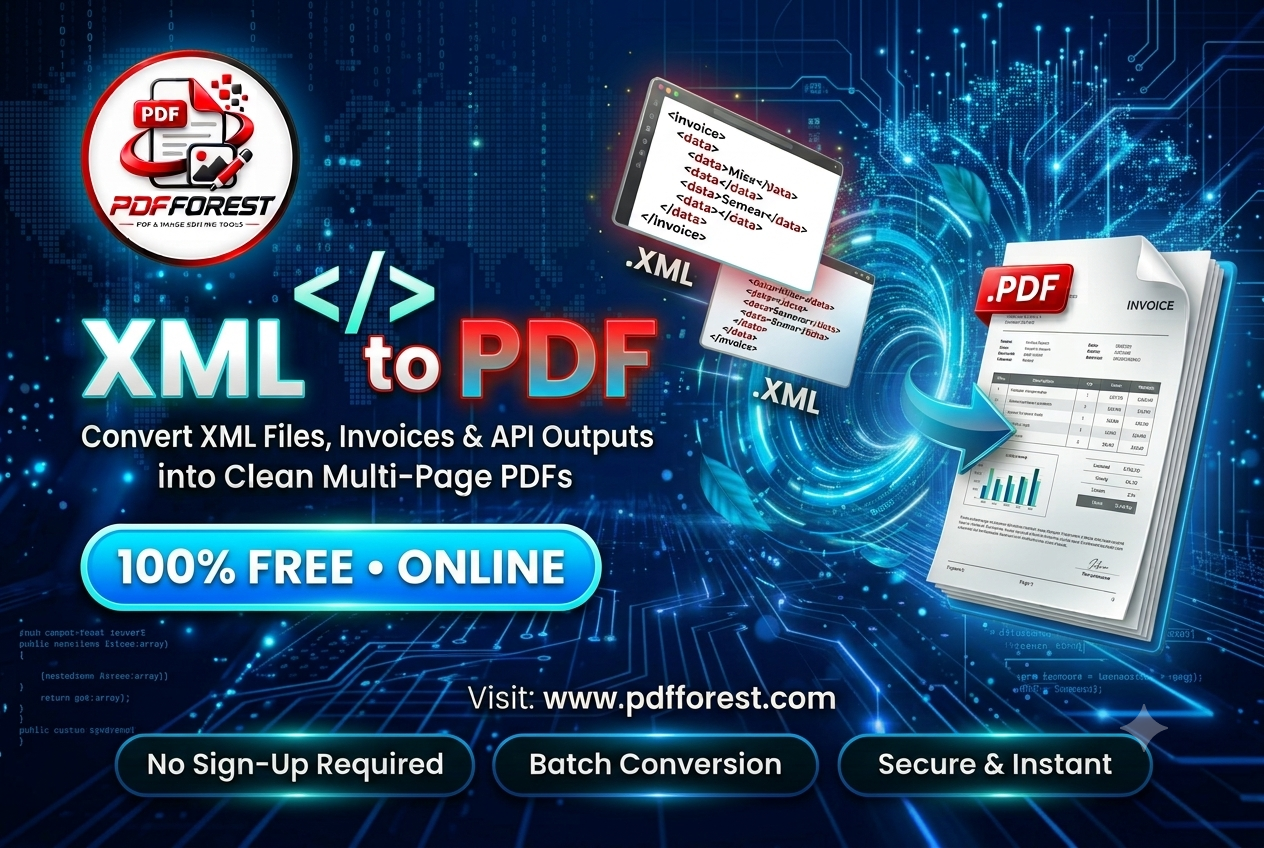
Beyond Raw Tags: How to Render Complex XML Data into Readable PDF Documents
Discover how to convert XML to PDF without clutter. Learn how to transform digital invoice files, API outputs, and raw nested datasets into readable documents free.
Computer systems thrive on structured data, but humans do not. If you have ever opened an Extensible Markup Language (.xml) file, you were likely greeted by a dizzying maze of nested tags, attributes, and raw data. For software parsers, this formatting is a masterpiece; for a human trying to read an invoice, scan a report, or review an API response, it is a readability nightmare.
Converting xml to pdf solves this problem by taking raw, machine-readable datasets and transforming them into structured, visually styled documents. Whether you need to pass transactional records to an auditing team, share invoice details with a client, or archive complex technical files, a solid rendering strategy saves you from sorting through raw code by hand.
In this guide, you will learn how to turn cluttered XML data into clean, formatted PDFs. We will cover the mechanical challenges of processing nested trees, styling raw files with transform sheets, and handling the most common formatting errors, so your final documents look like professional reports instead of raw code dumps.
Working with multiple formats across your digital workspace? Just as you can convert web-native files to portable documents with our
What is an XML to PDF Converter and How Does It Work?
What is an XML to PDF converter?
An XML to PDF converter is a specialized utility that processes structured, markup-based data files (.xml) and styles them into a visually formatted, page-bound PDF document. This tool parses the underlying data hierarchy, applies layout styles—often via XSLT (Extensible Stylesheet Language Transformations) or custom CSS—and renders the result into a human-readable document without code clutter.
At its core, a converter bridges the gap between machine logic and human visual design through a multi-stage rendering process:
Parsing: The converter scans the XML file to validate its syntax and construct a logical "tree" of all data nodes and relationships.
Transformation: It applies a styling guide, like an XSLT sheet or inline layout rules, to map raw data elements to visual blocks (such as tables, headers, and paragraphs).
Pagination: The styled content is calculated into page layouts, applying specific margin rules, page numbers, and custom footers.
Compilation: The document engine compiles the result into a vector-based, print-ready
.pdfarchive.
Whether you need to use an xml to pdf converter to batch-process a collection of transaction files or just need an instant xml to pdf converter browser based tool for a quick review, this process eliminates the need to manually format nested strings.
Why Converting XML Direct-to-PDF Looks Messy
While raw images or text documents can render on a page with simple scaling, XML does not come with natural visual properties. Converting raw files without style mapping leads to major presentation problems:
The "Tag Dump" Effect: Direct translation often renders visual bracket markup, tag elements, and metadata attributes inline, creating a document that is still barely readable.
Invisible Data Hierarchies: XML stores data in multi-layered parent-child relationships. Without dedicated formatting, these nested layers flatten into long, unstructured paragraphs, destroying the original context.
Text Cutoffs and Overflow: Long, unbroken data nodes (such as unique API identifiers, Base64 strings, or transaction hashes) will overflow standard page margins, cutting off critical information if the renderer fails to apply text wrapping.
To turn xml into pdf successfully, you need to configure the engine to interpret the data structure, organize specific child nodes into tables, and apply responsive page breaks.
Step-by-Step: How to Transform Nested Data into Structured Documents
Converting complex data into an easy-to-read document does not require writing code from scratch. You can easily generate styled, multi-page PDFs using simple browser tools.
1. Clean and Validate Your Source File
Make sure your .xml file is free of corrupt strings or parsing errors. Check for missing close tags (e.g., matching to & and <) are properly handled, and confirm the document begins with a valid XML declaration ().
2. Select a Web-Based File Processing Tool
Open a free online xml to pdf converter no signup directly in your mobile or desktop browser.
Upload your
.xmlfiles into the drag-and-drop dashboard.If you are running high-volume batch operations, use a tool that allows you to batch convert xml to pdf online free in a single session.
3. Apply Layout Templates or XSLT Stylesheets For standard documents like invoices, use predefined layout styles to map XML datasets directly into tables and visual fields. If you are dealing with a proprietary database schema, upload an XSLT file to define your custom layout rules.
4. Review and Export Check the document preview to confirm that text wraps correctly, tables display nested arrays clearly, and no raw markup leaks into the layout. Click Convert to build and download your print-ready PDF file.
Troubleshooting Common XML Data Rendering Errors
When you try to convert xml to pdf, data parsing errors can occasionally stall your visual export. Here is how to troubleshoot the most common rendering bugs:
1. XML Parsing Failures and White Screen Crashes
The Cause: Syntax errors, mismatched tags, or invalid character encoding (e.g., UTF-8 schema mismatches) often cause the rendering parser to halt before it can generate a layout tree.
The Fix: Open the file in a text editor or browser validation console to check for syntax errors. Ensure that nested child elements are properly closed, and replace raw system symbols with XML entity references (like
&for&).
2. Layout Clipping or Disappearing Data Tables
The Cause: Hardcoded grid bounds or styling templates that cannot handle variable-length data arrays.
The Fix: If you are building high-volume data sheets, verify your parser supports dynamic row styling and text wrapping. For nested datasets, try adjusting the layout from Portrait to Landscape to provide extra horizontal room for multi-column data.
3. Data Appears as an Unstructured Text Block
The Cause: The converting engine processed the file without an XSLT mapping stylesheet or template styling, leading to a raw tag dump.
The Fix: Use custom CSS styling sheets, upload XSLT layouts, or process the data through an XML-to-table transform to create natural tabular boundaries.
Strategic Value of Structured Data PDF Workflows
Developer & Enterprise Data Automation In large-scale data workflows, generating readable PDFs directly from raw system outputs helps teams verify file exports and monitor errors without needing to inspect raw server code. These assets provide readable snapshots for data audits, logging reviews, and database standard audits.
Enterprise Supply Chain & E-Invoicing Workflows Supply chains, finance teams, and billing services rely heavily on XML to exchange B2B data, like universal billing documents, supply manifests, and transactional e-invoices. Standardizing these system datasets into PDFs simplifies file sharing, allowing you to easily send printable, readable documents to audit, finance, and client teams.
Frequently Asked Questions (FAQs)
How can I convert an XML invoice into a readable PDF? To convert xml invoice to readable pdf, upload your file to an online document generator. The tool applies pre-designed business invoice sheets to capture key values—such as vendor details, line-item totals, and tax information—and automatically maps them into a clean invoice PDF.
Do I need to install desktop software to transform XML files? No. You can easily use a free online xml to pdf converter no signup or an instant xml to pdf converter browser based tool on any device. These utilities let you parse data files, apply styles, and compile PDFs directly in your mobile or desktop browser without any system installations.
Is it safe to process sensitive files through online XML converters? Security is vital when dealing with financial and corporate data. Protect your workflow by using web converters that do not upload your data to remote servers. Ensure your provider processes files locally in your browser with SSL encryption, and check that system files are deleted immediately after download.
Turning raw system records into clean, well-formatted documents does not require manual data entry or complex coding. By pairing automatic parsing with web-based converters to save xml as pdf, you can clean up nested tags, format arrays into tables, and build professional, readable PDFs in seconds.
Whether you need to organize database exports, archive client invoices, or streamline data archives, visit