Why You Can’t Copy Text From a PDF — How OCR Fixes It
Have you ever opened a PDF, seen a perfectly readable paragraph, and tried to copy it—only to find that nothing happens?
You drag your mouse across the sentence, but the words won't highlight. You press Ctrl+C, paste somewhere else, and get nothing useful.
It's an annoying problem, especially when you're working with lecture notes, scanned books, old reports, invoices, forms, or documents sent by someone else.
The PDF probably isn't broken. The text may simply be stored as an image.
That's where OCR becomes useful.
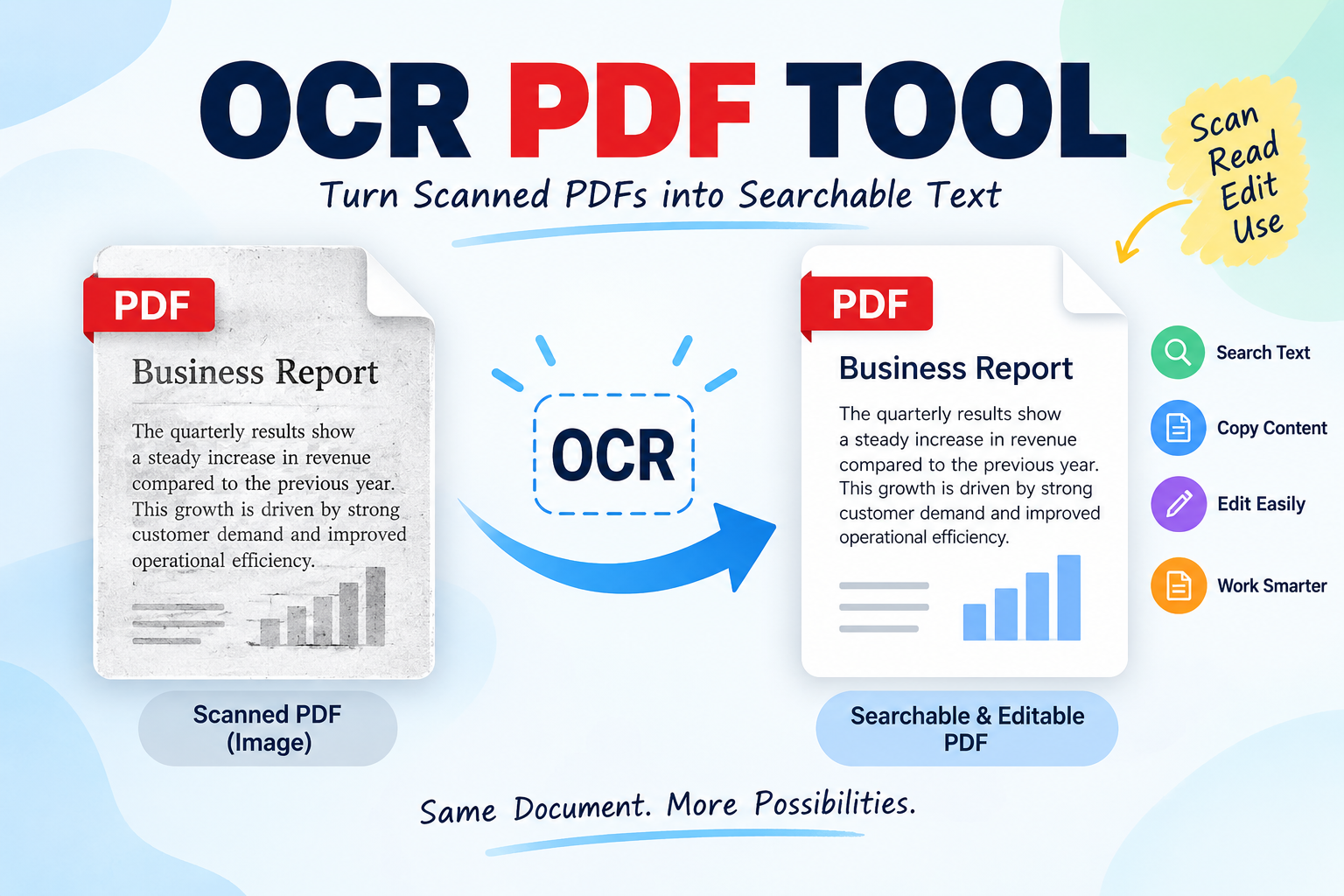
OCR stands for Optical Character Recognition. It can recognize characters in a scanned page and turn them into machine-readable text, making information that was previously trapped inside an image much easier to search, copy, and work with.
Why Can't You Copy Text From Some PDFs?
Not every PDF stores information in the same way.
If you create a document in Microsoft Word, Google Docs, or another text editor and save it as a PDF, the words normally remain digital text. You can select a sentence, copy it, search for a word, and paste the content into another application.
A scanned PDF is different.
When a paper document is scanned, each page is captured as an image. The letters are visible to you, but the computer may not recognize them as individual characters.
This creates a strange situation: you can see the text, but the computer can't necessarily read it as text.
For example, you might have a scanned college assignment that clearly says:
“Introduction to Financial Management”
But when you try to select those words, the entire page behaves like a photograph.
That's a typical situation where an OCR PDF Tool can be useful.
Scanned PDF vs. Normal Text PDF
Two PDFs can look almost identical on your screen and still behave completely differently.
A normal text PDF
Suppose you write a report in Word and export it as a PDF.
The text remains digital information inside the document. You can normally:
Select words
Copy paragraphs
Search for phrases
Extract text
Use the content in other applications
A scanned PDF
Now imagine printing that same report and scanning the printed pages.
The scanner records pictures of the pages. The words are still visible, but they may no longer be selectable.
Here's a quick test.
Open the PDF and try to highlight a sentence. Then use Ctrl+F on Windows or Cmd+F on Mac and search for a word you can clearly see.
If the search doesn't find it and the text can't be selected, there's a good chance you're looking at an image-based PDF.
What Is OCR?
OCR stands for Optical Character Recognition.
The easiest way to understand it is to think about a scanned page.
Your eyes see words, sentences, numbers, and headings. A computer looking at the same scanned page may initially see only pixels.
OCR examines those pixels and tries to identify the characters.
For example, a scanned page might contain:
“The meeting will take place on Monday at 10:00 AM.”
OCR attempts to recognize the letters and numbers and turn them into actual digital text.
The basic process looks like this:
Scanned page → Character recognition → Text layer → Searchable document
OCR has been used for many years in document digitization, archives, forms, data processing, and other situations where printed information needs to become machine-readable.
You can learn more about the technology through the Optical Character Recognition reference on Wikipedia.
How OCR Fixes the Copy-and-Paste Problem
OCR doesn't magically recreate the original Word document.
Instead, it recognizes the characters visible on each page and creates machine-readable text from them.
Once the text has been recognized, you may be able to:
Select it
Copy it
Search it
Extract it
Edit it, depending on the output format
This can make a huge difference when you're dealing with a long scanned document.
Imagine having a 200-page scanned book and needing to find every mention of one particular topic.
Without searchable text, you're looking at page after page.
After OCR, you can search for the term directly.
That is probably the biggest practical benefit of OCR: it makes information inside scanned pages easier to find and reuse.
How to Tell if a PDF Needs OCR
You don't need complicated software to check.
Try these simple tests.
Try selecting a sentence
Use your mouse to highlight a sentence.
If individual words won't select, the page may be an image.
Try searching for a visible word
Use Ctrl+F or Cmd+F.
Choose a word that is clearly visible on the page and search for it.
If the search returns nothing, the PDF may not contain a searchable text layer.
Try copying a paragraph
Select what looks like a paragraph and paste it into a text editor.
If you can't select anything, that's another strong sign that OCR may be needed.
Check several pages
Some PDFs contain a mixture of normal text pages and scanned pages.
So don't rely only on the first page.
How to Use an OCR PDF Tool
The exact buttons and settings vary between services, but the basic process is usually quite simple.
1. Select the scanned PDF
Choose the PDF you want to make searchable or extract text from.
2. Upload the document
An OCR PDF Tool can process the scanned pages and recognize the text contained in them.
3. Let the document process
The OCR system examines the pages and identifies the characters it finds.
A small document may finish quickly. A large, image-heavy PDF can take longer.
4. Check the result
This step is easy to skip, but it matters.
Look at headings, names, numbers, dates, tables, and unusual formatting.
5. Use the recognized text
Once you've checked the result, you can search, copy, or otherwise use the recognized text according to the type of output produced.
OCR Is Useful for Students
Students run into this problem quite often.
A professor may share scanned lecture notes. A library may provide an old scanned book. Someone may send a PDF of previous examination papers.
The information is there, but copying a paragraph can be impossible.
Suppose you're writing an assignment and need a short quotation from a 100-page scanned document.
Without OCR, you might end up typing the quotation manually.
With OCR, you can process the document and search for the relevant section much faster.
It still makes sense to compare the extracted text with the original before using it in an assignment, especially if the quotation needs to be exact.
OCR Is Useful for Bloggers and Writers
Bloggers and writers sometimes work with material that was never created digitally.
This could include:
Printed reports
Scanned interviews
Old magazines
Brochures
Research documents
Historical publications
Manually typing several pages isn't impossible, but it's a slow way to work.
OCR can create an initial text version that gives you something to work from.
The writer can then clean up the formatting, check spelling, compare the text with the original document, and make sure any quotation is accurate.
In this situation, OCR is less about replacing the writer and more about avoiding unnecessary typing.
OCR Is Useful in Office Work
Businesses deal with scanned documents every day.
Invoices, forms, archived reports, contracts, receipts, applications, and older records may exist only as scanned PDFs.
If you have hundreds of such documents, being able to search their contents can be much more useful than simply searching filenames.
For example, suppose an employee needs to find an old report containing a particular customer name.
If the documents are image-only scans, the computer may not be able to search inside them.
After OCR, that information can become searchable.
That's a relatively small technical change, but it can make document handling much easier.
OCR Isn't Always Perfect
This is the part worth remembering.
OCR can save a lot of time, but it can make mistakes.
A blurry 0 might be read as the letter O. A 1 might be confused with an I. Numbers in tables can be especially troublesome.
The layout can cause problems too.
A document with two columns, footnotes, tables, sidebars, and images may contain all the correct words but put them in the wrong order when the text is extracted.
NIST has conducted research into OCR performance and document-image recognition, including the effect of document and image characteristics on recognition results. You can reference its work on methods for evaluating OCR systems.
The practical lesson is simple: don't assume OCR output is automatically perfect.
The Better the Scan, the Better the Result
OCR has an easier job when the original page is clear.
A straight, sharp scan with good contrast is much easier to process than a photograph taken at an angle with a shadow across the page.
Before running OCR, check the document for:
Blurry text
Cropped letters
Very low resolution
Heavy shadows
Skewed pages
Very faint text
Excessive image compression
If you still have the original paper document, rescanning it properly can sometimes produce a better result than trying to work with a poor-quality scan.
It's one of those cases where better input usually means less cleanup later.
What Happens With Tables and Complex Layouts?
Plain paragraphs are usually easier for OCR than complicated pages.
Consider a financial report with two columns, tables, charts, footnotes, and side notes.
The OCR system may correctly recognize most of the words but struggle to understand the exact layout.
For example, text from the left and right columns could end up mixed together.
This is because recognizing characters and understanding document structure are related but different tasks.
NIST's document-image research includes complex pages containing tables, equations, maps, footnotes, annotations, and multi-column text, which helps illustrate why document structure can make OCR more difficult.
If you're working with a complicated document, always check the output visually against the original.
Can OCR Read Handwriting?
This is a little different.
Traditional OCR is mainly associated with printed or typed text. Handwriting is much harder because writing styles vary so much from person to person.
A clear typed page is one thing.
A page of hurried handwritten lecture notes is another.
There are technologies designed specifically for handwriting recognition, but you shouldn't assume that a standard OCR process will reproduce handwriting accurately.
If the document contains handwritten information, check the results carefully against the original.
Be Careful With Numbers and Important Information
A small OCR mistake can sometimes create a big problem.
Consider an invoice.
If OCR changes:
₹10,000
to:
₹100,000
the error is no longer minor.
The same applies to:
Account numbers
Dates
Names
Addresses
Product codes
Prices
Legal wording
Identification numbers
If you're processing an important document, use OCR to save time but verify critical information against the original page.
That extra check is worth doing.
OCR and Searchable PDFs
One of the most useful results of OCR is a searchable document.
Imagine a 150-page scanned report.
Without OCR, you may have to manually look through every page to find a particular phrase.
With a searchable text layer, you can search for the phrase and jump to the relevant location much faster.
This is useful for:
Research papers
Archived reports
Legal documents
Business records
Books
Meeting notes
Historical documents
Study material
NIST's Federal Register Document Image Database is one example of research material involving scanned document images, ground-truth text, and OCR results.
Does OCR Change the Original PDF?
That depends on the OCR process being used.
Some OCR workflows add a searchable text layer while keeping the original page appearance.
Others extract the recognized text separately.
Either way, it's a good habit to keep the original file.
This is especially important for old documents, official records, contracts, or anything that would be difficult to recreate.
If the OCR result isn't quite right, you still have the original pages available for comparison.
Privacy Matters When Processing Documents
Not every PDF should be uploaded to an online service without thinking about what it contains.
A document might include:
Personal information
Bank details
Identification documents
Contracts
Business records
Confidential correspondence
Before using an online OCR PDF Tool, check how the service handles uploaded files and what its privacy policy says.
For highly sensitive documents, local or offline processing may be more appropriate.
The convenience of online processing is useful, but the nature of the document should always be considered first.
OCR Doesn't Replace Proofreading
It's tempting to run OCR on a document, copy the result, and move on.
For unimportant material, that might be fine.
For anything you're going to publish, submit, quote, or use for an important decision, take a few minutes to check it.
Pay particular attention to:
Names
Numbers
Dates
Currency
Headings
Technical terms
Tables
Quotations
A good workflow is:
Scan → OCR → Review → Correct → Use
That simple review can catch errors before they become a problem.
When Does OCR Make Sense?
OCR is worth considering when:
You can't select text in a PDF
Ctrl+F doesn't find words that are clearly visible
You need to copy information from a scanned document
You're working with old scanned books or reports
You need to search a large collection of scanned files
You want to reduce manual typing
You need to make an image-based PDF searchable
On the other hand, if you can already select, copy, and search the text, OCR may not be necessary.
It's worth checking the PDF first instead of processing it automatically.
A Simple Real-Life Example
Suppose someone sends you a 60-page scanned company report.
You need to find every mention of a particular product.
You open the PDF and press Ctrl+F.
Nothing happens.
You try selecting a paragraph.
Again, nothing.
The problem becomes obvious: the pages are probably images rather than searchable text.
You can run the document through an OCR PDF Tool and then check the resulting text.
Afterward, you search for the product name and review the pages where it appears.
Instead of manually reading all 60 pages, you've turned the document into something much easier to work with.
That's really where OCR earns its place. It takes information that was locked inside page images and makes it accessible to ordinary computer functions such as search and copy.
Final Thoughts
If you can see the words in a PDF but can't select or search them, the document probably contains page images rather than actual digital text.
OCR can bridge that gap.
It recognizes characters from scanned pages and converts them into machine-readable text, making documents easier to search, copy, archive, and work with.
For students, bloggers, professionals, researchers, and anyone dealing with scanned documents, this can save a surprising amount of time.
Just don't skip the checking step. OCR can get very close to the original, but a small mistake in a name, number, date, or quotation can still matter.
So the practical approach is simple:
Check the PDF → Run OCR if needed → Review the result → Use the text.
If you have a scanned PDF that won't let you select or search its text, an OCR PDF Tool is one practical way to start.
Suggested Authority References
1. Wikipedia — Optical Character Recognition
Placement: Under “What Is OCR?”
Use this for the basic definition and background of OCR.
Optical Character Recognition — Wikipedia
2. NIST — Methods for Evaluating OCR Systems
Placement: Under “OCR Isn't Always Perfect.”
Useful for supporting discussion about OCR accuracy and document/image quality.
NIST — Methods for Evaluating OCR Systems
3. NIST — Federal Register Document Image Database
Placement: Under “OCR and Searchable PDFs.”
Useful as a technical reference for scanned document images, OCR results, and searchable document research.
NIST Federal Register Document Image Database