September 03, 2026
6 min read
How to Split PDF Files Online Free
- How to Split PDF Files Online: The Ultimate Free & Secure Guide
- We have all been in a spot where a massive PDF file becomes more of a hassle than a help. You receive a 50-page employee handbook, but you only need the two pages covering remote work policy. Or maybe you scanned a multi-page stack of tax documents into one huge file, and now you need to send just a single receipt to your accountant.
- Sending a giant, bloated document when someone only asked for a few pages feels clunky. It wastes bandwidth, clutters up inbox storage, and forces the recipient to scroll endlessly just to find what they need.
- The fix is surprisingly simple: break the file down into exact pieces. Learning how to
split pdf online
- Why You Should Use a Tool to Split PDF Files Online
- Handling gigantic documents page by page manually is frustrating. Extracting specific sections on demand solves that friction right away.
- When you use a browser tool to
split pdf online - Targeted Sharing: Send people only the pages they actually need rather than making them dig through a 100-page report.
- Reduced File Size: Stripping out heavy background pages or large embedded images makes your document much easier to send over email.
- Better Privacy: Separate confidential sections before sharing a document externally with clients or vendors.
- No Software Downloads: Forget installing heavy programs or dealing with trial periods just to complete a quick two-minute task.
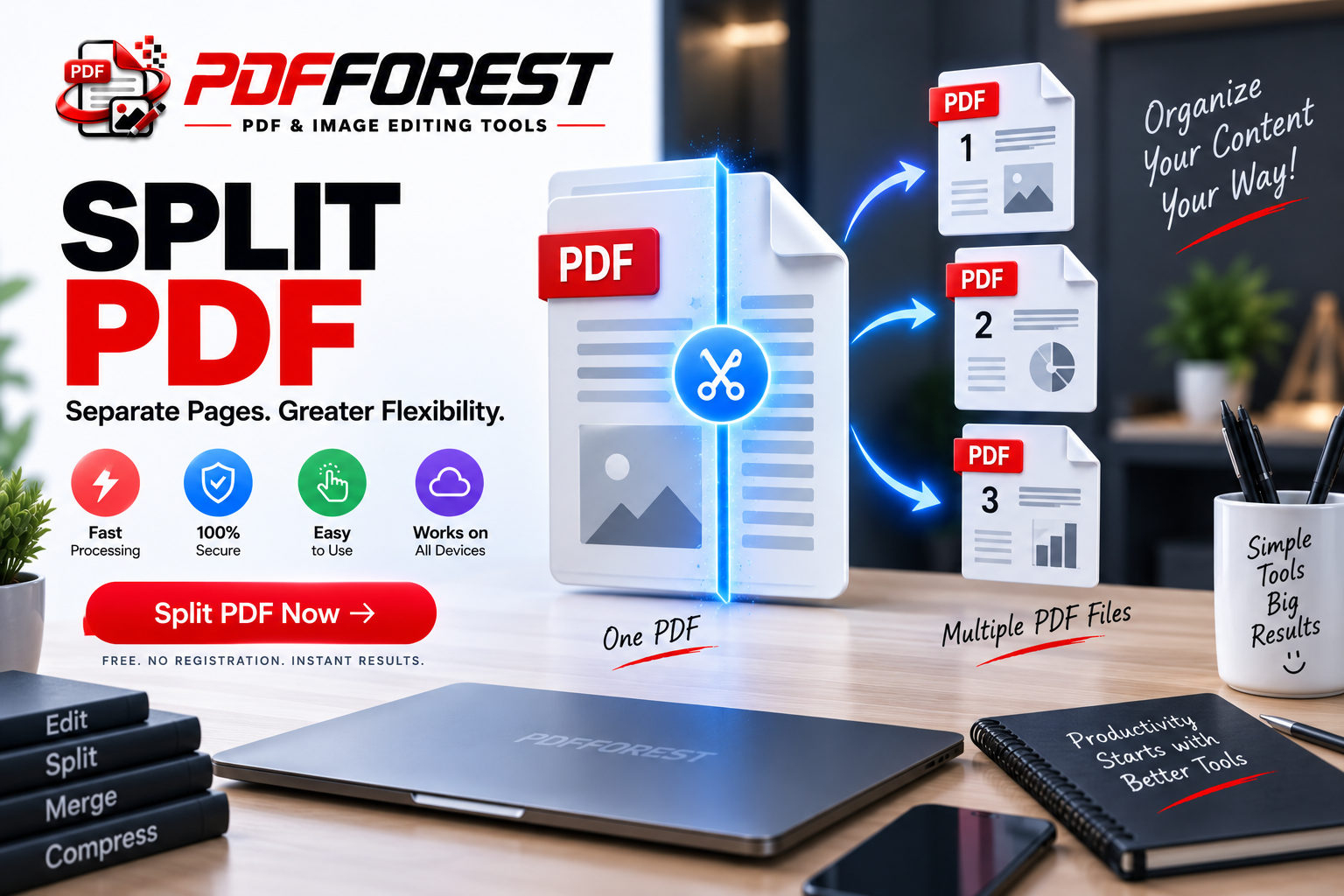
- Think of an online PDF splitter like a pair of digital scissors. Instead of handing someone a heavy binder, you snip out the exact sheet they requested and hand it over clean.
- Step-by-Step: How to Split PDF Online Free
- If you have never used an online platform to divide a document, don't worry. The whole process takes less than a minute. Here is the exact step-by-step workflow to
split pdf online
- If you have never used an online platform to divide a document, don't worry. The whole process takes less than a minute. Here is the exact step-by-step workflow to
- Step 1: Upload Your Document
- Start by picking out the file you want to separate. Open your browser, head over to the
split pdf online
- Start by picking out the file you want to separate. Open your browser, head over to the
- Step 2: Choose Your Splitting Method
- Once your document loads, you will see visual thumbnail previews of every page. Depending on your goal, you have a few ways to divide it:
- Extract Individual Pages: Click only on the specific pages you want to pull out into a new standalone file.
- Set Page Ranges: Specify custom range intervals (for example, pages 1-5, 8, and 12-15) to group related sections together.
- Split Every Page: Automatically turn every single page of a multi-page file into its own individual single-page document.
- Step 3: Process and Download
- After picking your page setup, hit the main action button labeled
split pdf online
- After picking your page setup, hit the main action button labeled
- Is It Safe to Split PDF Files Online? (Security & Privacy)
- It is completely fair to double-check privacy before uploading financial records, medical forms, or legal contracts to a web tool. Is your data actually secure when you process it on the web?
- When you use a service to
split pdf online
- Safety Checklist for Online Tools
- To make sure your documents stay private, verify that your chosen platform follows these safety practices:
- SSL/TLS Data Encryption: Look for the closed padlock symbol in your web browser address bar (
https://). This ensures your files are encrypted during upload and download.
- SSL/TLS Data Encryption: Look for the closed padlock symbol in your web browser address bar (
- Automated Server Wipes: Trusted services don't keep copies of your documents. They run automated scripts that delete your original and processed files from their servers shortly after you finish downloading.
- Strict Privacy Guarantees: Check the site's privacy guidelines to confirm they do not review, scan, or share user file content.
- Pro Tip: If you are working with sensitive government forms or confidential legal agreements, make sure the tool explicitly mentions automatic file deletion before dropping your file into the server.
- How to Split PDFs on Mobile Devices (iOS & Android)
- Work happens everywhere, not just at a desk. You might receive a long contract on your phone while traveling and need to pull out just the signature page right away.
- You can run a quick
split pdf online
- On iPhone (Safari)
- Open Safari and navigate to the
split pdf online
- Open Safari and navigate to the
- Tap the upload area and pick your file from the iOS Files app.
- Select the exact pages or ranges you need to extract.
- Tap process, download your new document, and save it straight back to your Files app.
- On Android (Chrome)
- Launch Chrome and open the
split pdf online
- Launch Chrome and open the
- Tap upload and choose your target document from your Downloads folder or Google Drive.
- Tap on the thumbnails to select the pages you want to separate.
- Process the file and save the newly created PDF to your phone's storage.
- No bulky mobile apps required—just a quick, clean fix using your mobile browser.
- Practical Tips for Managing Separated Documents
- To keep your document workflow running seamlessly whenever you need to
split pdf online - Preview Page Numbers First: Open your large file locally and note down the exact page numbers you need before uploading. This speeds up selection.
- Organize Your Output Names: If you extract several separate files, rename them right away with clear titles (e.g.,
Project_Proposal_Section_2.pdfinstead ofoutput_1.pdf).
- Organize Your Output Names: If you extract several separate files, rename them right away with clear titles (e.g.,
- Combine Related Pages Later: If you extract pages from different sources, you can always run them through a merger tool afterward to build a clean custom document.
- To keep your document workflow running seamlessly whenever you need to
- Frequently Asked Questions
- Does splitting a PDF online degrade the original quality?
- No, the extraction process preserves vector text, formatting, and images exactly as they were in the original file.
- Can I split a PDF file that has a password?
- Yes, but you will need to enter the master password first to unlock the file so the tool can access and separate the pages.
- What happens if I split a 50-page file into single pages?
- The platform will bundle all 50 individual single-page documents into a single downloadable ZIP file so your browser doesn't trigger 50 separate downloads.
- Wrap-Up
- Managing large digital files doesn't need to be overwhelming. Whether you are extracting a few receipts, pulling chapters out of an eBook, or isolating contract pages, using a web tool to
split pdf online - Next time you receive a massive document with only a couple of useful pages, skip the manual copy-pasting. Head over to the
split pdf online
- Managing large digital files doesn't need to be overwhelming. Whether you are extracting a few receipts, pulling chapters out of an eBook, or isolating contract pages, using a web tool to