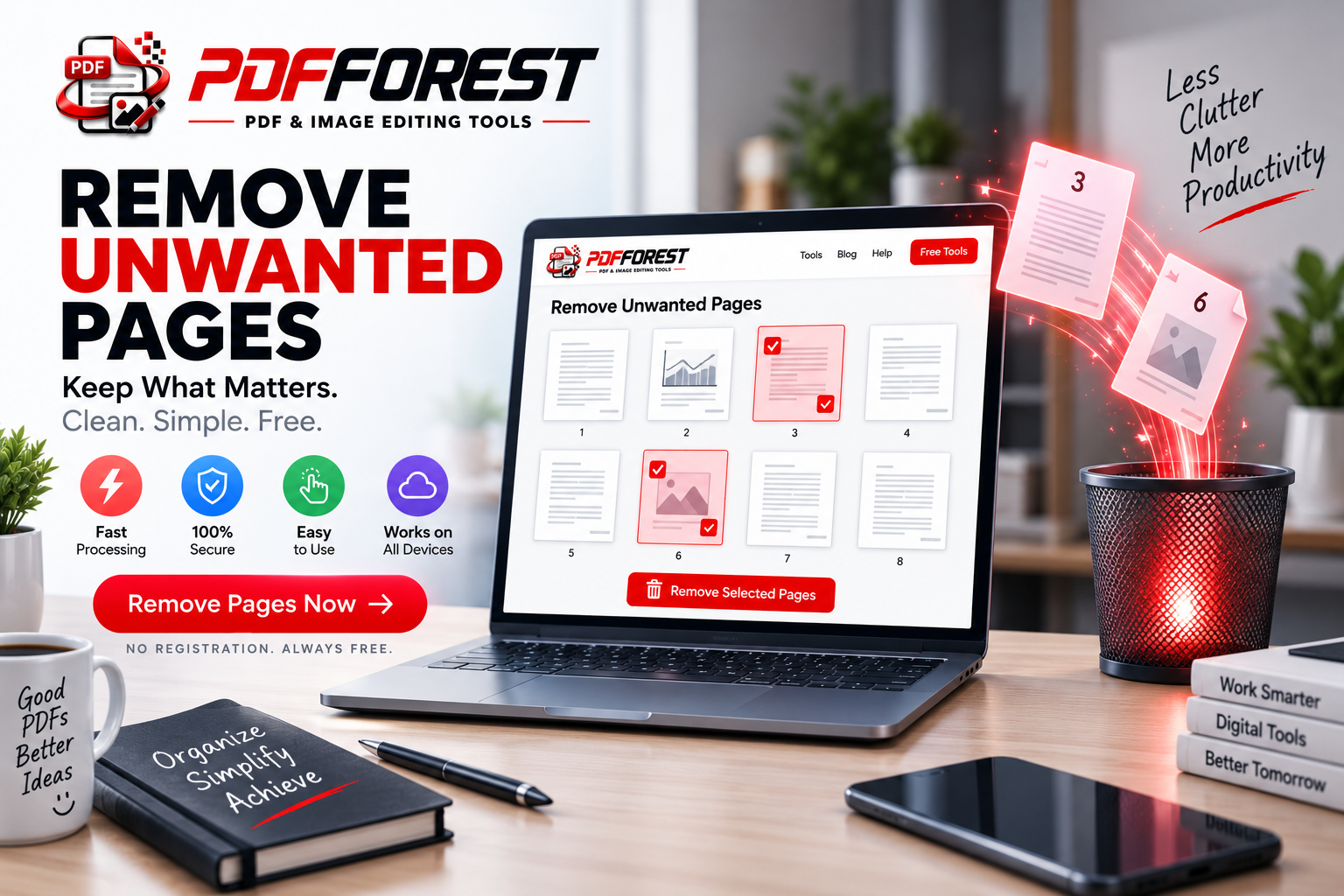
How to Remove Pages from PDF Online Free
How to Remove Pages from PDF Online: The Ultimate Free & Secure Guide
We have all encountered a scenario where a PDF document contains content that simply does not belong there. You download a 30-page report, but it includes 5 blank filler pages, an outdated cover sheet, or sensitive internal notes that should never reach a client's inbox.
Sending an unedited document filled with unnecessary pages looks unpolished. It inflates your file size, creates unnecessary clutter, and forces your reader to navigate through content that isn't relevant to them.
The solution is straightforward: strip away the clutter. Learning how to use a
remove pages from pdf Why You Should Use a Tool to Remove Pages from PDF Files
Editing heavy documents manually used to require full desktop publishing suites. Modern browser-based utility tools make deleting unwanted pages effortless.
When you use a browser tool to
remove pages from pdf Polished Presentation: Deliver clean, professional files stripped of blank pages, accidental duplicate scans, or internal cover notes.
Enhanced Privacy: Delete confidential financial information, internal team notes, or private identifiers before sending documents to external clients.
Reduced File Size: Stripping out heavy image pages or unused appendices makes your file easier to attach to emails or send via messaging apps.
No Software Required: Perform quick edits on any device without installing heavy, bloated desktop programs.
Think of a page removal tool as a digital red pen. Instead of re-scanning a whole stack of papers or re-exporting a project from scratch, you simply pull out the extra sheets and keep what matters.
Step-by-Step: How to Remove Pages from PDF Online Free
If you have never edited a PDF in a web browser before, don't worry. The entire process takes less than a minute. Here is the exact step-by-step workflow to
remove pages from pdf Step 1: Upload Your File
Start by selecting the document you want to clean up. Open your web browser, navigate to the
remove pages from pdf Step 2: Select the Unwanted Pages
Once your document loads, you will see visual thumbnail previews of every page in your file.
Scroll through the thumbnails and click directly on any page you want to delete.
Look for blank pages, outdated tables, or extra cover sheets.
Selected pages will be marked for removal, allowing you to review your choices before finalizing.
Step 3: Process and Download
Once you have selected all the unnecessary pages, click the main action button labeled
remove pages from pdf Is It Safe to Remove Pages from PDF Files Online? (Security & Privacy)
It is natural to prioritize security before uploading invoices, signed contracts, or personal forms to a web platform. What happens to your files during processing?
When you use a platform to
remove pages from pdf Security Standards to Look For
Before editing sensitive documents, ensure your chosen platform meets these fundamental privacy standards:
SSL/TLS Encryption: Ensure the browser address bar shows
https://with a padlock icon. Encryption prevents third parties from intercepting your data during transfer.Automated File Deletion: Trustworthy services do not retain your records. Automated scripts purge both original and edited files from their servers shortly after processing.
No Content Tracking: Privacy policies should guarantee that your files are never indexed, read, or shared with third parties.
Pro Tip: If you are working with sensitive government documentation, tax filings, or legal agreements, review the platform's auto-delete timeline before processing your files.
How to Remove Pages from PDF on Mobile (iOS & Android)
Document edits often happen on the go. You might receive a multi-page contract on your mobile device and need to trim an unnecessary appendix before forwarding it to a colleague.
You can use a
remove pages from pdf On iPhone (Safari)
Open Safari and launch the
remove pages from pdf Tap upload and choose your target document from the iOS Files app.
Tap on the page thumbnails you wish to delete.
Tap process, download the new version, and save it back to your Files app.
On Android (Chrome)
Open Chrome and go to the
remove pages from pdf Tap upload and select your file from Google Drive or local storage.
Select the unwanted page thumbnails using touch controls.
Process the file and download your trimmed PDF directly to your device.
Best Practices for Clean Document Management
To maintain a smooth workflow whenever you need to
remove pages from pdf Double-Check Page Numbers: Quickly review your document before uploading to note the exact page numbers that need removal.
Keep Your Original Copy: Always retain a backup of your original, unedited PDF in case you ever need to restore the deleted content.
Rename Your Trimmed File: Give your updated document a clear name (e.g.,
Final_Report_Cleaned.pdf) to distinguish it from the original draft.
Frequently Asked Questions
Does removing pages affect the resolution or quality of the remaining pages?
No. Page deletion simply removes the specified pages from the file structure without altering or compressing the text, fonts, or images on the remaining pages.
Can I restore pages after I have deleted them and saved the new PDF?
Once you download the edited file, the selected pages are permanently removed from that specific version. As long as you kept your original source file intact, you can re-upload it to perform a different edit.
Can I delete multiple pages at once?
Yes. You can select multiple page thumbnails simultaneously across the document before running the removal process.
Wrap-Up
Keeping your digital files organized and concise doesn't require complex software. Whether you are removing blank pages, trimming unnecessary legal disclaimers, or cutting out sensitive details, using an online
remove pages from pdf The next time you get stuck with a clunky, bloated document, don't let extra pages slow you down. Head over to the
remove pages from pdf