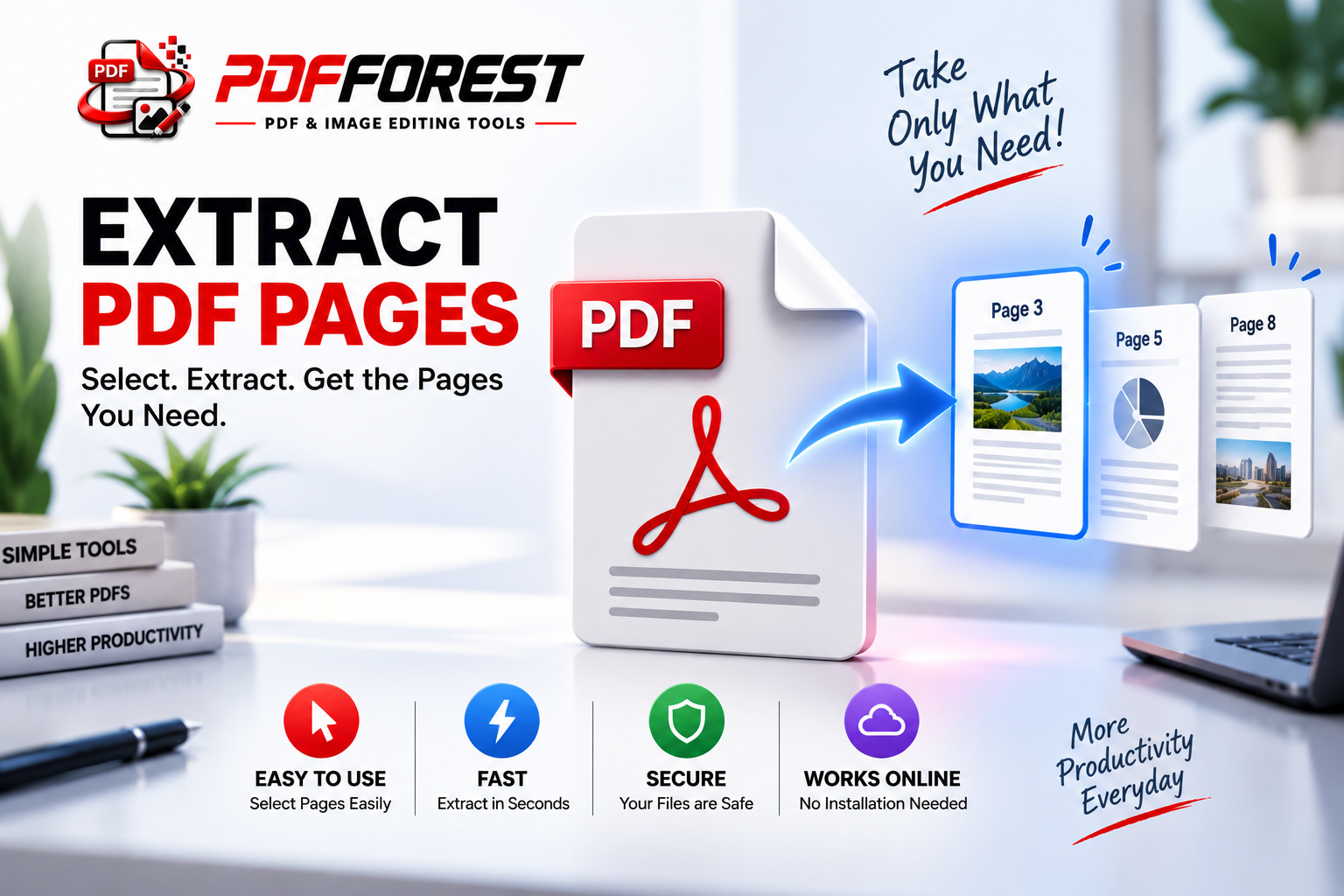
How to Extract Pages from PDF Online Free
How to Extract Pages from PDF Online: The Ultimate Free & Secure Guide
Think back to the last time you received a massive 80-page document when you only needed a two-page summary. Maybe it was a dense industry research report, an entire building lease, or a multi-chapter textbook. You wanted to pull out a few vital sheets for a meeting, but instead, you had to forward the whole heavy file to your team.
Dumping an entire document onto someone when they only need a tiny slice is inefficient. It clutters up local downloads, buries important information under irrelevant fluff, and forces your reader to waste time finding the right section.
There is a far smarter way to handle this: pluck out the exact pages you need and leave the rest behind. Learning how to use an
Why You Should Use a Tool to Extract Pages from PDF Files
Instead of re-creating slides or copying and pasting messy text blocks, pulling original vector pages directly from a source file keeps your formatting perfectly intact.
When you use a modern web utility to
Precision Sharing: Deliver only the relevant chapters, charts, or signature forms to clients without overwhelming them.
Faster Email Deliveries: Smaller, focused files mean lightning-fast uploads and zero bounce-backs caused by inbox attachment limits.
Smarter Content Curation: Pull individual sheets from multiple sources—like receipts, certificates, or references—and compile them cleanly.
Zero Desktop Bloat: Perform precise edits instantly in your browser without downloading heavy software tools.
It works just like pulling a single article out of a thick magazine. You keep the valuable story you actually want to read, and you drop the rest of the heavy stack in the recycling bin.
Step-by-Step: How to Extract Pages from PDF Online Free
Never used a web tool to pluck specific pages out of a file? Don't worry—the whole workflow takes less than a minute from start to finish. Here is how to use an
Step 1: Upload Your Master File
Grab the document you want to work on. Open your favorite web browser, head over to the
Step 2: Choose Your Key Pages
Once your document uploads, visual thumbnails of every page will appear on your screen.
Click directly on the specific thumbnails you want to isolate (e.g., pages 4, 12, and 19).
Type out custom page ranges if you are pulling a whole chapter (e.g., pages 15-25).
Decide whether you want to merge your selected pages into a single new document or download each extracted page as an individual file.
Step 3: Extract and Save
Double-check your selected thumbnails, then click the main button labeled
Is It Safe to Extract Pages from PDF Files Online? (Security & Privacy)
It is smart to pause and think about security before throwing confidential financial statements or legal agreements into an online tool. Where do your files actually go during processing?
When you process a document with an
Your Privacy Checklist
Always make sure your chosen web tool supports these three security standard pillars:
End-to-End SSL/TLS Encryption: Look for the small padlock icon next to
https://in your browser bar. Encryption guarantees no third party can view your data while it travels back and forth.Automated Server Wipes: Trustworthy platforms use automated timers that permanently delete your original upload and newly generated files from their servers within 30 to 60 minutes.
Strict Content Confidentiality: Reputable platforms explicitly promise in their terms that human staff will never open, review, or store your document data.
Pro Tip: If you are working on highly sensitive corporate documents or private medical files, take five seconds to double-check the tool's privacy policy to confirm their auto-deletion timeline.
How to Extract Pages from PDF on Mobile (iOS & Android)
Need to pull an important receipt out of a multi-page travel itinerary while you are waiting at the airport? You don't need a laptop or specialized phone apps to handle it.
Running an
On iPhone (Safari)
Launch Safari and head to the
extract pages from pdf Tap upload and choose your document from your iPhone’s Files app.
Tap the visual page thumbnails you need to pull out.
Hit process, then save your newly created PDF back into your Files app or share it right via message.
On Android (Chrome)
Open Google Chrome and go to the
extract pages from pdf Tap upload and choose your target file from Google Drive or local storage.
Tap to highlight the individual pages you want to keep.
Process your file and save your brand-new, trimmed PDF directly to your device's Downloads folder.
Smart Tricks for Better PDF Page Extraction
To keep your document workflow clean and headache-free every time you need to
Write Down Page Numbers First: Open your large file on your phone or computer first and jot down the exact page numbers you need before uploading to speed up your selection.
Rename Output Files Immediately: Avoid keeping generic names like
extracted_doc_1.pdf. Give your new file a clear title likeQ3_Budget_Summary_Only.pdf.Combine Extracted Sections: If you need specific pages from three different giant files, extract them first, then run them through a merger tool to build one perfect custom master document.
Frequently Asked Questions
Will extracting pages lower the resolution of my text or images?
No. The extraction process preserves the exact quality, layout, text vectors, and embedded images of the original file.
Can I pull pages out of a password-protected PDF?
Yes, but you must enter the correct password when prompted to unlock the file before the extraction tool can read and pull the pages.
What happens to my original PDF file after I extract pages?
Your original master document stays completely untouched on your device. The online tool simply creates a brand-new, separate PDF file containing only your selected pages.
Next time you are handed a giant document, don't let 100 extra pages slow down your day. Take control of your files—head over to the