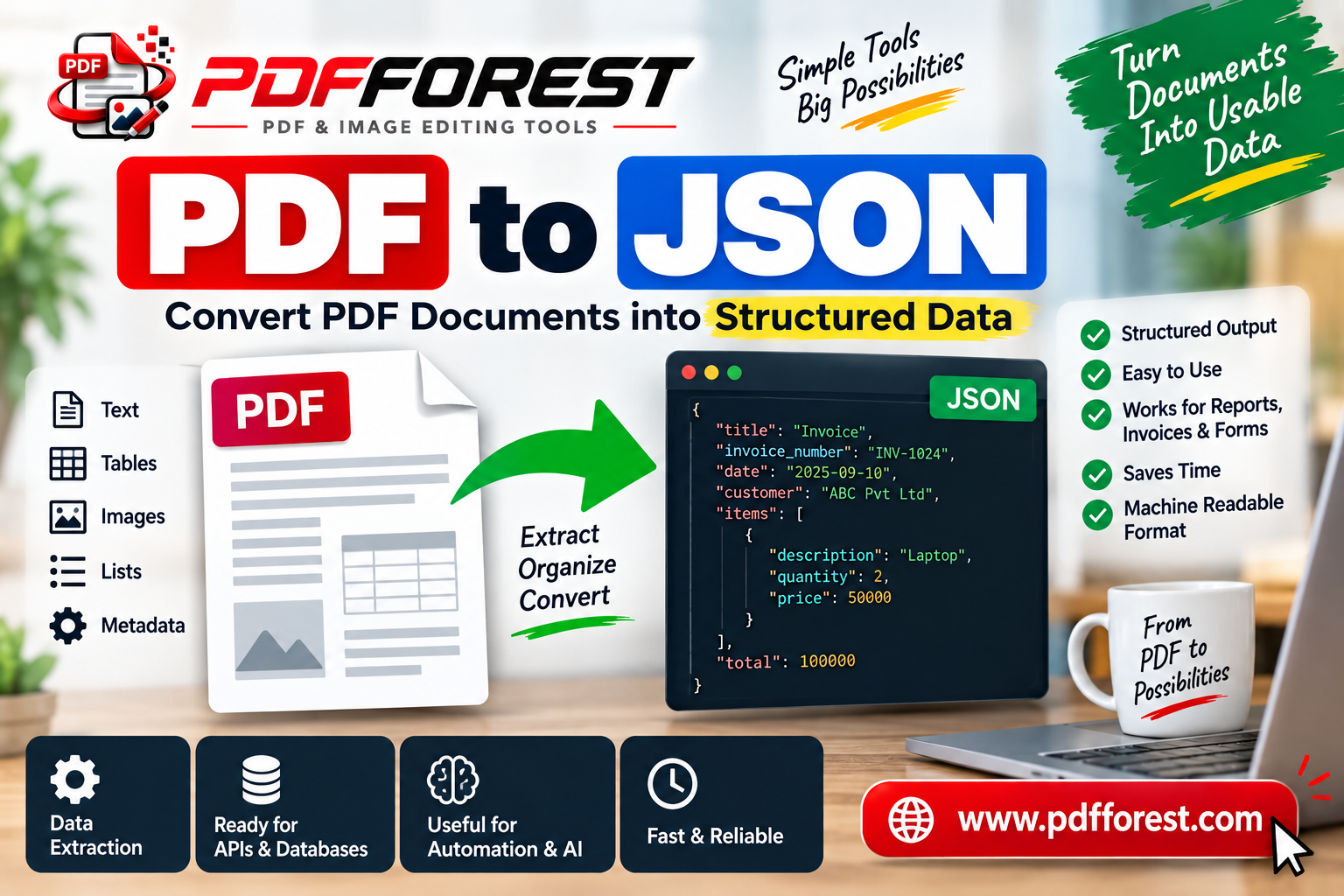
How to Convert PDF to JSON and Turn Documents Into Usable Data
PDFs are great for reading. They're terrible for building software on top of. If you've ever tried to pull line items out of an invoice, grab customer fields from a scanned form, or feed contract data into a database, you already know the pain — PDFs lock information into a fixed visual layout instead of a structure a machine can actually work with.
That's where a PDF to JSON converter comes in. Instead of manually copying numbers out of a document, you convert the file into JSON — a structured, machine-readable format that any application, script, or API can parse instantly.
In this guide, you'll learn what PDF to JSON conversion actually involves, how to extract tables and scanned data into JSON, which tools and libraries to use, and how to keep your output clean and layout-accurate.
What Does "PDF to JSON" Actually Mean?
A PDF is essentially a snapshot of a page — text, images, and positioning baked into a fixed layout. JSON, on the other hand, is a lightweight data format built from key-value pairs, arrays, and nested objects.
Converting PDF to JSON means extracting the content of a PDF — text, tables, form fields, metadata — and reorganizing it into that structured format. Instead of a flat page, you end up with something like:
{
  "invoice_number": "INV-2049",
  "date": "2026-08-14",
  "line_items": [
    { "item": "Consulting Services", "qty": 10, "rate": 120, "total": 1200 }
  ],
  "total_due": 1200
}
This structure is what makes it possible to automate downstream tasks — importing invoice data into accounting software, indexing contracts for search, or feeding documents into an analytics pipeline.
Common Use Cases for PDF Data Extraction
Before picking a tool, it helps to know what kind of extraction you actually need, since the right approach depends heavily on the source document.
- Convert PDF invoice to JSON automatically — pulling vendor names, line items, totals, and tax amounts from recurring invoice formats.
- Extract PDF fields to JSON — pulling form data (names, dates, checkboxes) from filled-out applications or intake forms.
- Extract tables from PDF to JSON — converting financial reports, price lists, or data tables into structured rows and columns.
- Scanned PDF to JSON — processing scanned or photographed documents that have no underlying text layer, which requires OCR before extraction.
- Bulk document pipelines — feeding hundreds or thousands of contracts or receipts through an automated extraction process.
Each of these has slightly different technical requirements, which is why a single "convert" button rarely handles everything well.
How to Convert a PDF to JSON: Step-by-Step
For most people, the process looks like this:
- Identify the document type. Is it a digitally generated PDF (text is selectable) or a scanned image?
- Choose an extraction method. Text-based PDFs can be parsed directly; scanned PDFs need OCR first.
- Define the structure you want. Decide whether you need flat text, tables, key-value fields, or a mix.
- Run the extraction. Use an online tool, an API, or a script to pull the content.
- Validate the output. Check that numbers, dates, and table rows mapped correctly — extraction tools can misread merged cells or unusual fonts.
- Export or integrate. Save the JSON file or pipe it directly into your application via API.
If you'd rather skip the setup entirely, tools like PDF Forest's PDF to JSON converter handle this end-to-end in the browser — upload a file and get structured JSON back without writing any code.
How to Retain PDF Layout When Converting to JSON
One of the most common frustrations with PDF extraction is losing the original structure — text ends up jumbled, or table columns get merged into one field. A few things help preserve layout accuracy:
- Use tools that detect table boundaries rather than just extracting raw text streams.
- Preserve coordinate or bounding-box data alongside the text, so you can reconstruct position if needed.
- For multi-column documents, choose a converter that reads in reading order rather than left-to-right across the whole page.
- Test with a sample page first — layout handling varies a lot between tools, especially on dense or multi-column PDFs.
Extracting Scanned PDFs to JSON
Scanned documents don't contain real text — they're images. To pull data out, the process needs an extra OCR (Optical Character Recognition) step before it can produce usable JSON.
The typical flow is:
- Run OCR on the scanned PDF to generate a text layer.
- Parse that text layer for structure (fields, tables, headers).
- Convert the parsed structure into JSON.
Accuracy here depends heavily on scan quality — a crisp 300 DPI scan will extract far more reliably than a blurry phone photo. If you're processing scanned invoices or ID documents regularly, look for a converter that explicitly supports OCR-based extraction, since not all PDF to JSON tools do.
Python Libraries for PDF to JSON Conversion
If you're building extraction into your own application, several Python libraries handle different parts of the job well:
For Text and Basic Structure
- PyMuPDF (fitz) — fast text and layout extraction, good for structured documents.
- pdfplumber — strong for extracting tables and precise character positioning.
For Tables Specifically
- Camelot — purpose-built for extracting tables from text-based PDFs into structured formats.
- Tabula-py — a Python wrapper around the popular Tabula table-extraction engine.
For Scanned Documents
- pytesseract — a Python wrapper for Tesseract OCR, useful as the first step before structuring scanned content.
A simple pdfplumber-based flow looks like this:
import pdfplumber
import json

with pdfplumber.open("invoice.pdf") as pdf:
    page = pdf.pages[0]
    tables = page.extract_tables()
    data = {"tables": tables}

with open("output.json", "w") as f:
    json.dump(data, f, indent=2)
This gets you raw table data quickly, though production pipelines usually add cleanup logic to map extracted rows into meaningful field names.
Open Source vs. API-Based Extraction
There are two broad paths for PDF to JSON conversion:
Open source PDF to JSON extractors (like the Python libraries above) give you full control and no per-document cost, but require setup, maintenance, and handling of edge cases yourself — especially for scanned or inconsistent documents.
PDF to JSON APIs and online tools handle the heavy lifting for you — OCR, layout detection, and table parsing are built in. This is usually the faster route if you don't want to maintain extraction infrastructure, particularly for teams processing documents at scale or without dedicated engineering resources.
Which one makes sense depends on volume, document consistency, and how much engineering time you want to spend on maintenance versus using a ready-made service.
Frequently Asked Questions
What is a PDF to JSON converter used for? A PDF to JSON converter extracts text, tables, and form fields from a PDF and restructures them into JSON, so the data can be used in applications, databases, or automated workflows instead of read manually.
Can I extract tables from a PDF into JSON? Yes. Tools and libraries like Camelot, Tabula-py, or dedicated online converters detect table boundaries and rows, then output them as structured JSON arrays rather than plain text.
How do I convert a scanned PDF to JSON? Scanned PDFs need OCR first, since they don't contain a text layer. Once OCR extracts the text, that content is parsed and structured into JSON — a process most PDF to JSON converters and APIs handle automatically.
Is there a free way to convert PDF to JSON? Yes. Open source Python libraries like pdfplumber and PyMuPDF are free to use, and many online converters offer free tiers for occasional or single-document conversions.
Does converting PDF to JSON keep the original formatting? It can, depending on the tool. Converters that detect layout and table structure (rather than extracting raw text) do a better job preserving column order, row grouping, and field relationships.
Turn Your PDFs Into Usable Data
Manually copying data out of PDFs doesn't scale — and it's exactly the kind of task that's easy to automate once your documents are in JSON. Whether you're processing a handful of invoices or building a pipeline for thousands of scanned forms, converting to structured data is the first real step toward automation.
If you'd rather not write extraction code from scratch, PDF Forest's PDF to JSON converter lets you upload a PDF and get clean, structured JSON back in seconds — no setup required.